
Airsound Spatial Audio System Setup Guide
Overview
The Airsound Spatial Audio System offers a flexible solution for playing high-quality 7.1.4 audio using specially constructed loudspeakers that feature dipole steering to create an authentic audio space. The system includes:
- A.S.A.P. Software: Provides signal processing for converting standard 7.1.4 audio to your chosen speaker configuration and allows control and configuration of the speaker system.
- Amplifier and Sound Card Interface: Ensures high-quality audio from ASAP to the loudspeakers.
- Airsound Spatial Speakers: Dipolar speakers for spatial sound, and a subwoofer to cover lower frequencies.
- Black Hole: Third-party software for capturing audio from any application on your computer.
Step-by-Step Setup
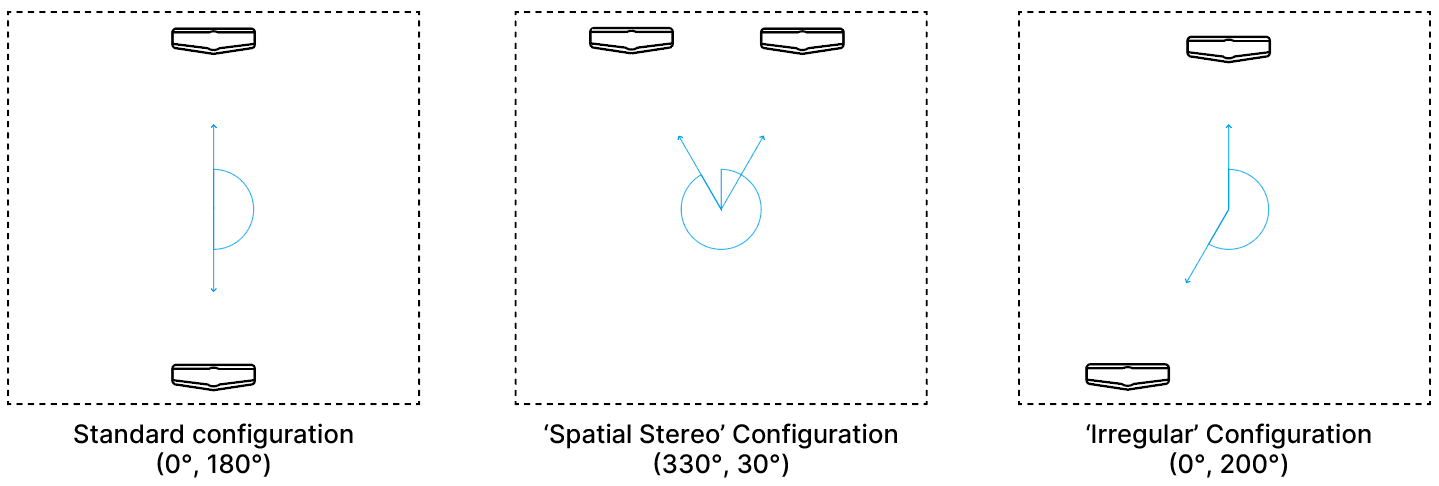
see: Speaker placement & volume for more details on speaker placement and adjustments.
- Positioning the Speakers and Subwoofer
- Default: One speaker at the front center and one at the rear center of the soundstage.
- Alternative 1: Stereo pair, positioned roughly 30° to the left and right of the listener.
- Alternative 2: Irregular – one speaker in the centre of the soundstage, and the other somewhere else (shown at 200 degrees)
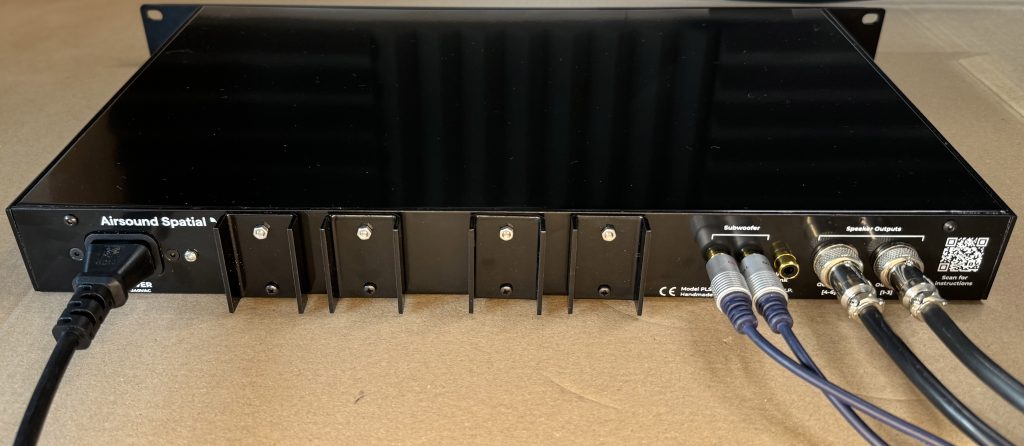
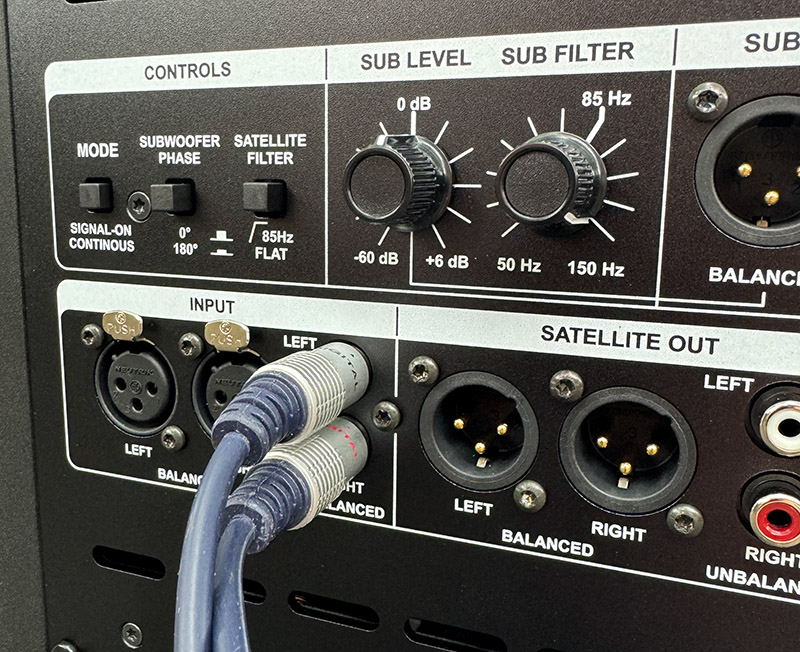
Update: It can be helpful to reduce the SUB LEVEL setting to around 9 o’clock (-10dB) as this gain setting is more in line with the rest of the system and can reduce noises when switching the amplifier off.
- Connecting the Speakers and Subwoofer
- Connect the speakers to the 6-pin outputs on the amplifier.
- Ensure all speakers are connected before powering on to avoid strain on the amplifier.
- Connect the subwoofer using a phono cable to the marked subwoofer output(s) on the back of the amplifier.
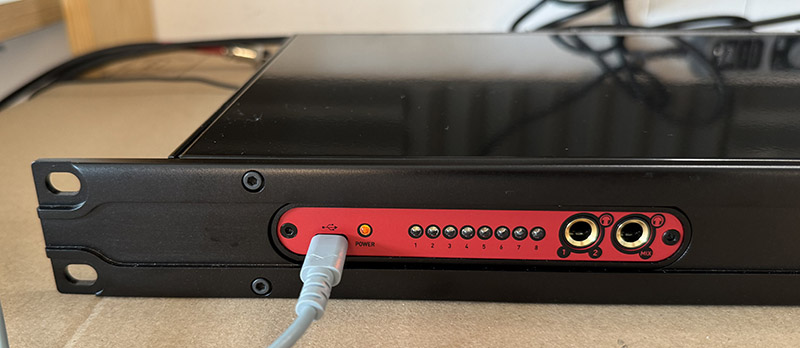
- Connecting the Sound Card
- Use a USB Type-C cable to connect the sound card to your computer as shown.
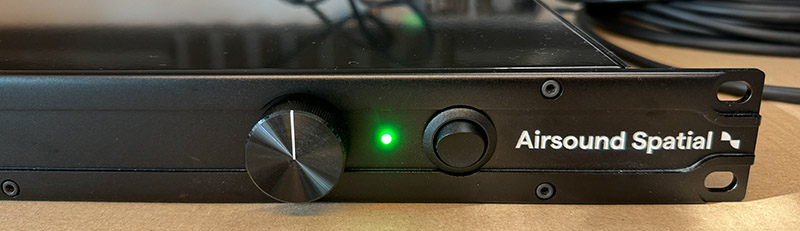
- Powering On the Amplifier
- Switch on the amplifier.
- Set the volume dial to the midpoint (pointing upwards).
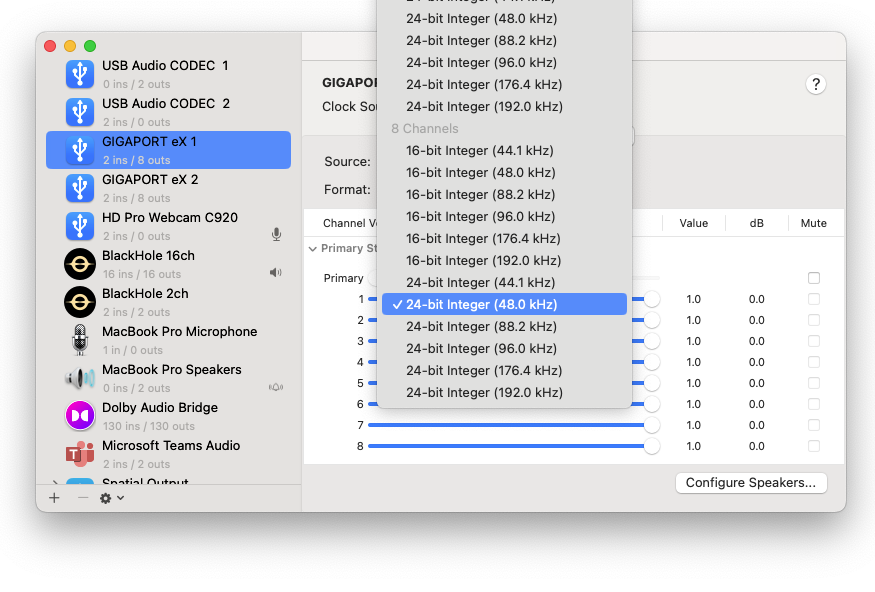
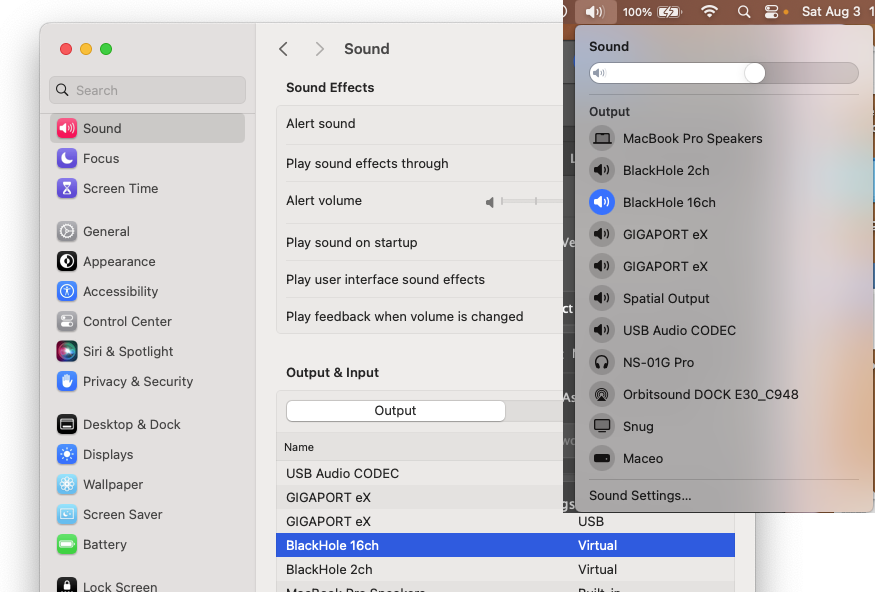
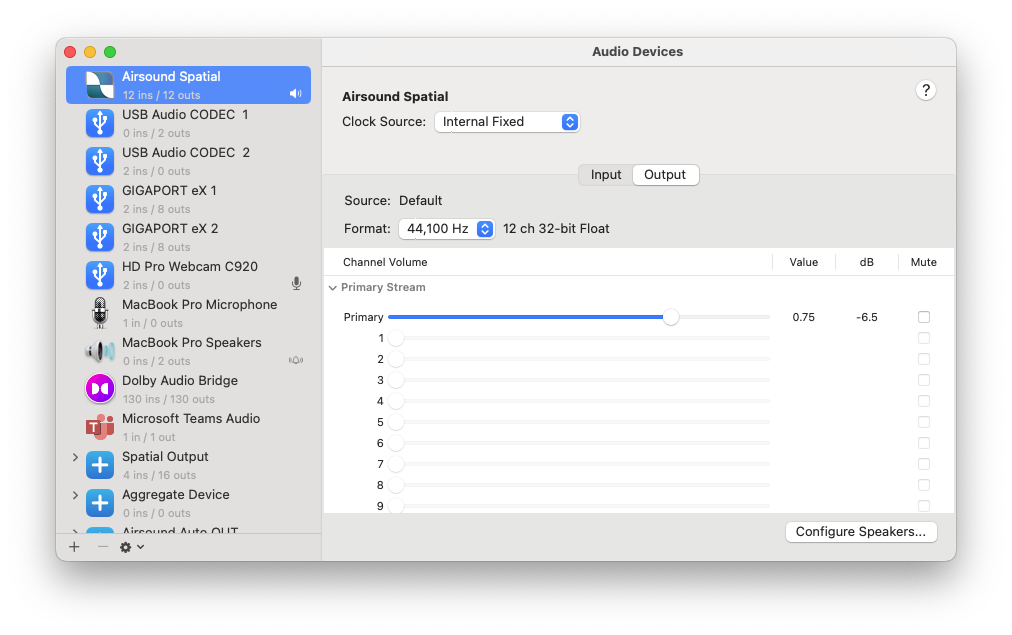 Selecting Blackhole device in Audio Midi control panel
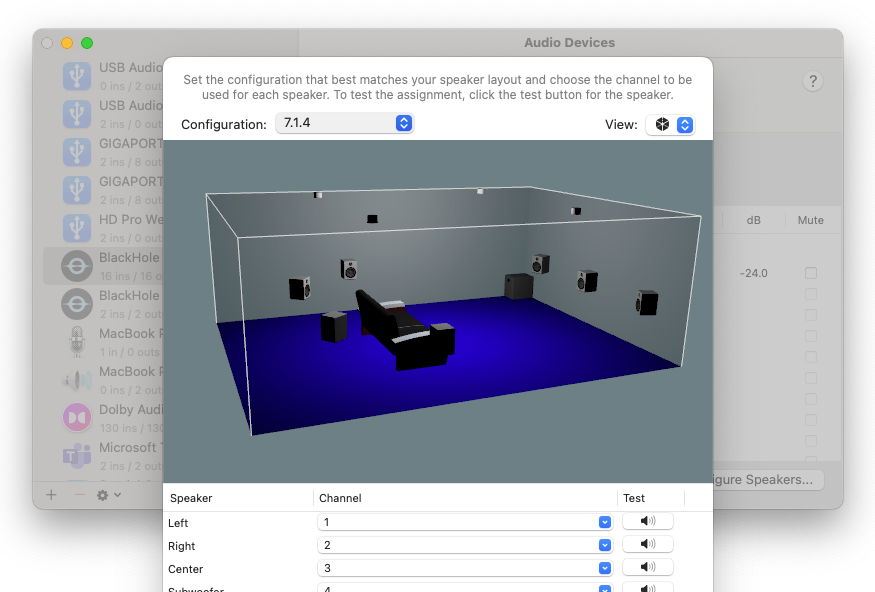
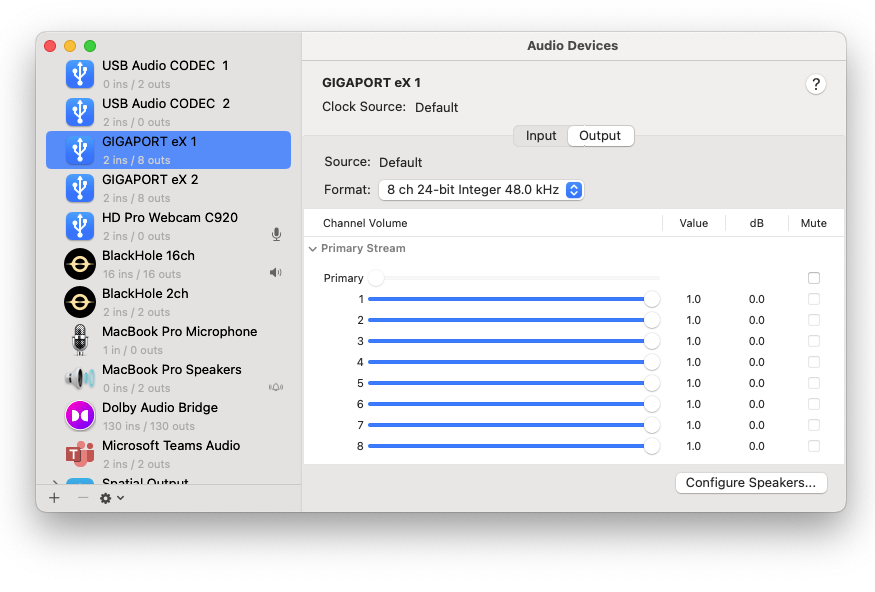
- Installing and Configuring Black Hole
- Download Blackhole 16-channel version and install it. https://existential.audio/blackhole/
- Open Audio Settings on your Apple computer.
- Select Black Hole 16 in the left column and configure speakers to 7.1.4.
- Ensure the sample rate and channels are set to 8-channel, 24-bit, 48 kHz.
- Configuring Your Sound Output
- In system settings, set your sound output device to Black Hole 16.
- Downloading and Setting Up ASAP
- Download ASAP from the airsound.com website.
- Unzip and move ASAP to your Applications folder.
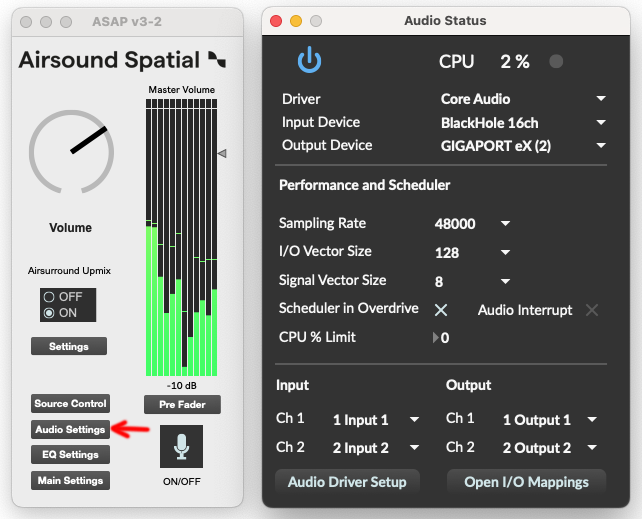
- Open ASAP, click ‘Audio Settings’ and configure the input sound card to BlackHole 16 and output sound card to GIGAPORT eX
- Click the microphone button on the main panel of ASAP to start the system.
- Testing the Setup
- Open an application like Apple Music and play a track.
- Check the ASAP control panel for sound indication and listen to the Airsound Spatial system!
You’re hearing audio, what’s next?
Adjusting Volume Advice
In general, keep the blackhole volume set to maximum. Set the amplifier at the minimum level that gives you as much volume as you want. Usually this is setting the dial to about 2-3o’clock. Use the ASAP volume control to fine tune your favourite listening level.
Setting up your Speaker Positions
There are a wealth of options inside ASAP, and these are developing all the time. However, the most important setting is to ensure that the position of the speakers in ASAP matches where you have placed them in your room. This is how ASAP can accurately play back a 7.1.4 soundfield.
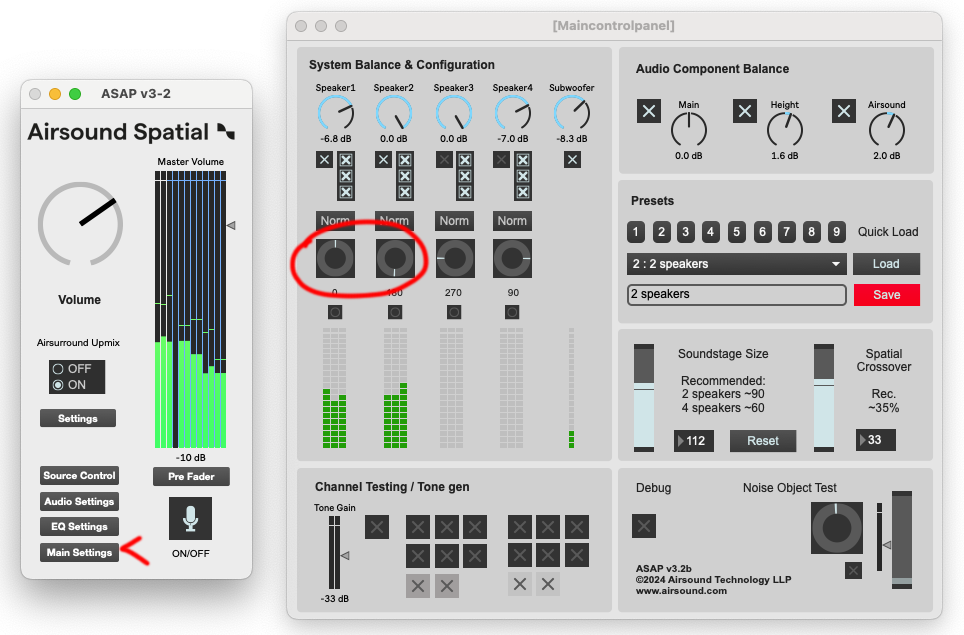
- Click ‘Main Settings’
- Speaker1 and Speaker2 relate to settings for the 2 Airsound Spatial speakers.
- Click and turn the dials so that the indicator points to the direction of the speaker (Shown is Speaker 1 in front of the listener and Speaker 2 behind the listener). The numerical angle is shown below the dial (0,180). The small button below resets the speakers to default positions.
- Use the Speaker1-4 and Subwoofer dials to adjust the volume/balance of the system to suit your room.
ASAP Settings Explanation
To be updated soon…