
When setting up a 4 speaker system, there are a few additional steps. Complete the initial install for the first 2 channels, then come back and follow these steps to add 2 more speakers to your setup.
1) Set up speakers and amp
Set up the slave amplifier. The default speaker channel configuration is as follows:

This is the default setup for ASAP. The slave amplifier is ‘amp 2’ and outputs 1 and 2 should be connected to the left and right speakers respectively.
Please note, this is the default configuration. Speakers may be placed anywhere around the listening space to suit!
2) Connect the volume link
Use a single phono (RCA) cable to connect the volume from the master amp to the slave amplifier. This link allows the master volume to control the gain of both amplifiers and all auxiliary outputs.
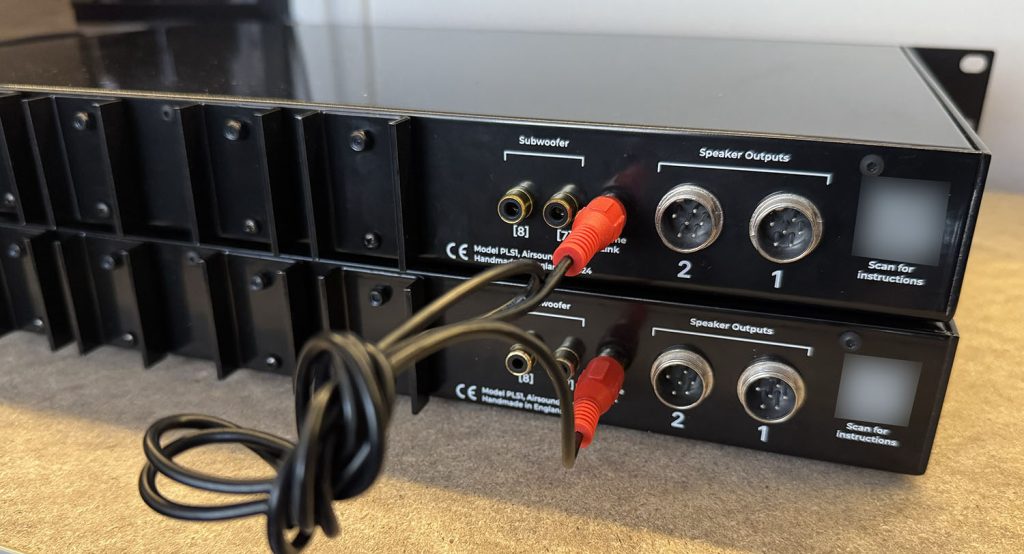
3) Sofware configuration
With the amplifiers connected and powered up, connect the USB of both amplifiers to your computer. You will now have 2 Gigaport devices available on your computer.
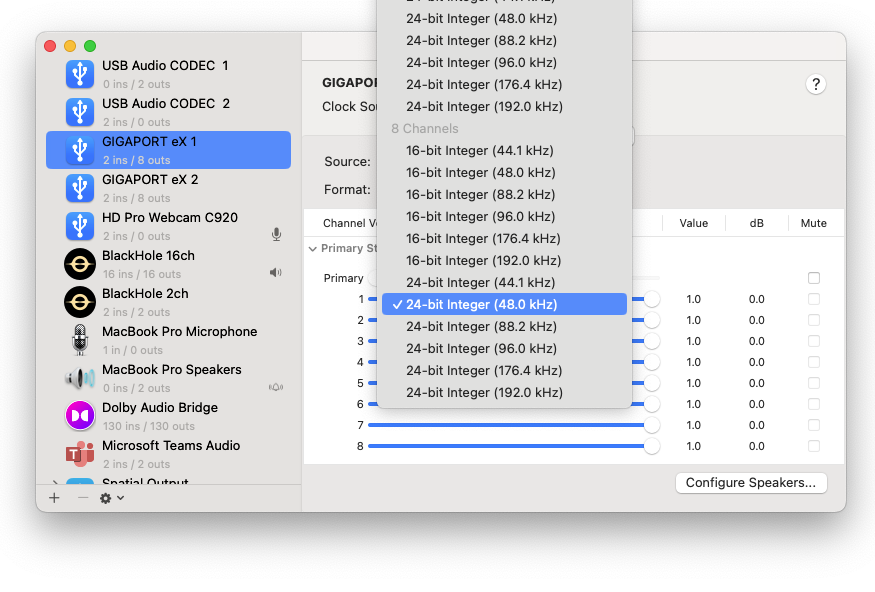
Ensure that both Gigaport devices are in 8 channel mode. We recommend 24bit, 8 channel, 48KHz.
Once this is done, there are a few more steps….
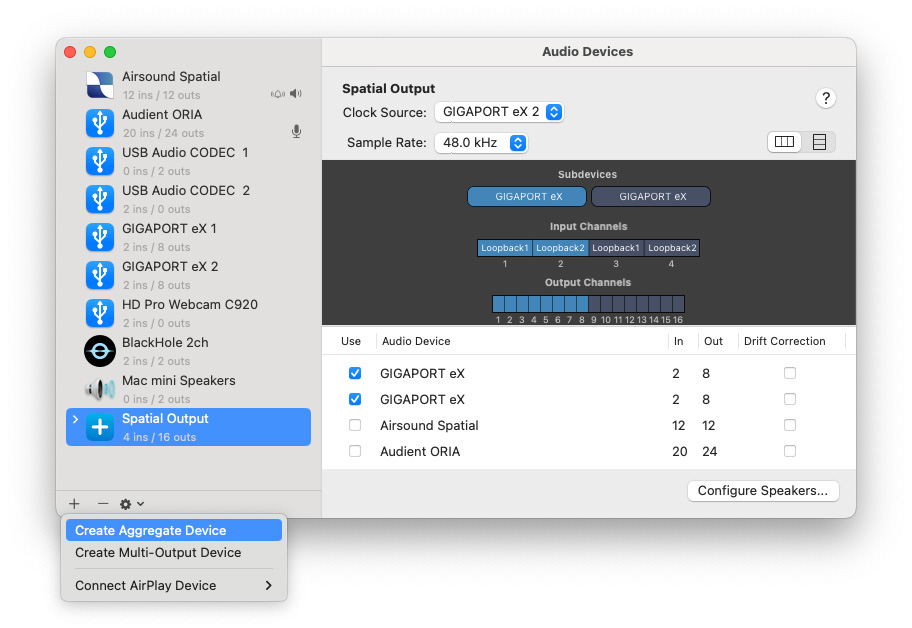 Open Audio Midi and choose 'Create Aggregate Device'
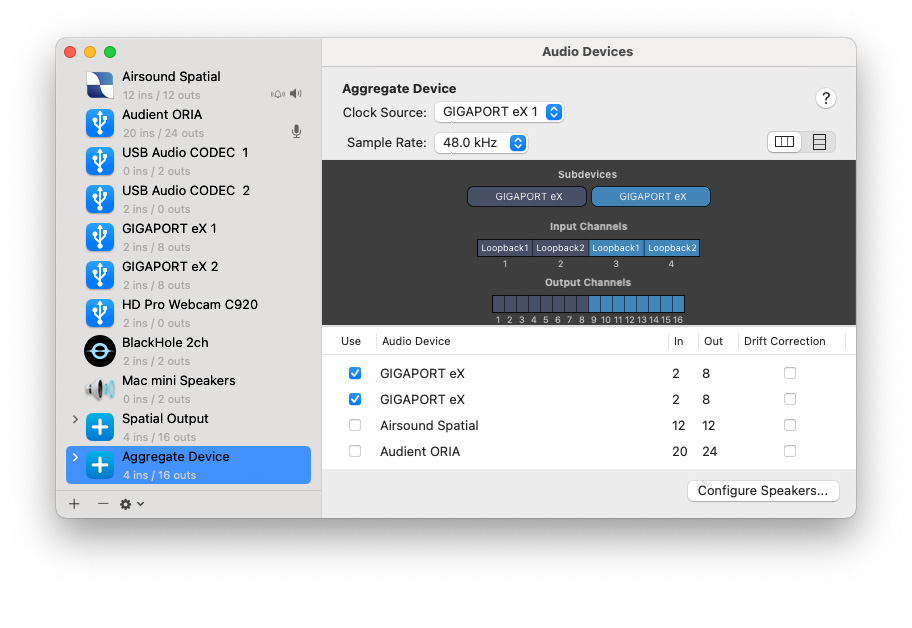
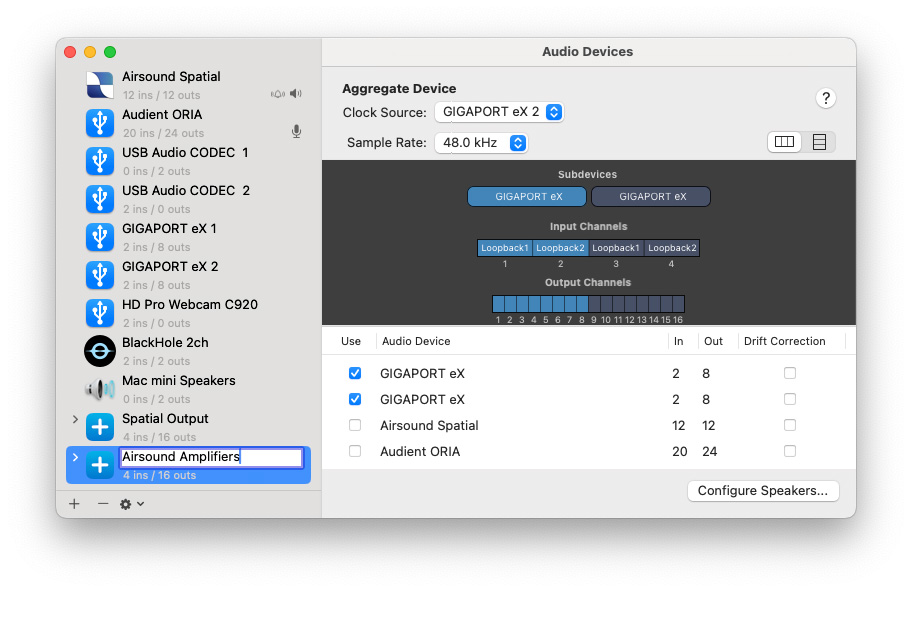
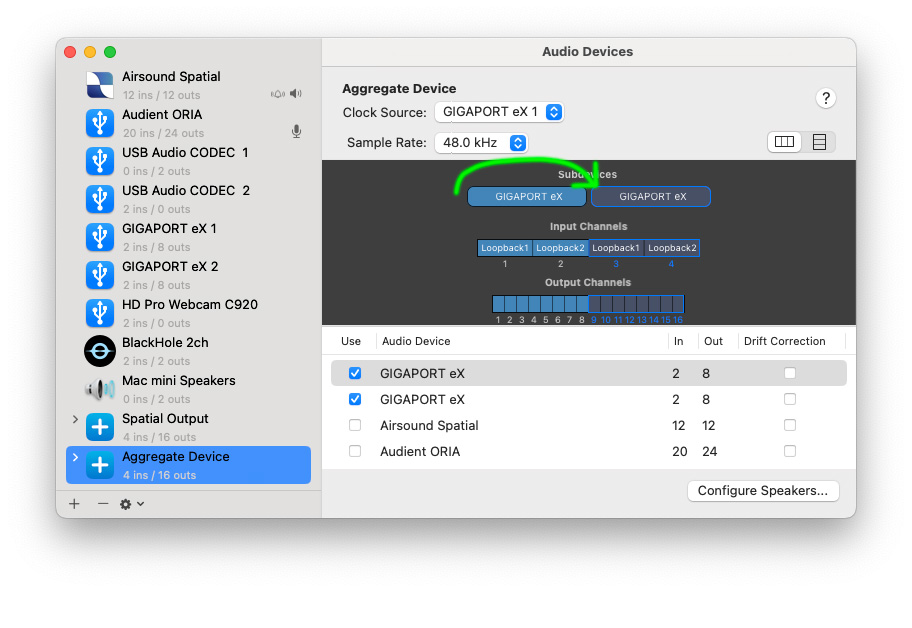
- Create an Aggregate Device in Audio Midi.
- Add the 2 Gigaports to your new Aggregate Device
- Rename your Aggregate Device to something helpful (e.g. Airsound Output)
- If the outputs are reversed* (this is a 50/50 chance!) click and drag the Gigaport to swap the devices. You will need to restart ASAP in this case.
* When the outputs are reversed, you will find that the master amplifier appears in ASAP as channels 3/4, and the slave 1/2. Swapping the sound card order in Audio Midi fixes this. Once this change has been made, your computer will remember the setting.
You should now have access to a 4 speaker system in ASAP! If you have any queries, please drop us a line…